
You built an app with an AI agent. It feels slow, so you type: "Make it faster."
The agent changes something and says it is faster now. Is it? And is it faster in the place where you felt it?
This guide is for people who build apps with AI agents and aren't technical. It shows you how to tell the agent which slow you mean, and how to check that it really got faster.
The short version
"Slow" is at least five different problems, and the agent cannot see which one you felt.
So tell it three things: what you did, what you saw and how long it took. Then ask it to prove the fix. You do not need technical words for any of that. This guide gives you the sentences.
Five common kinds of slow
1. "The page is blank for ages"
Why: the page has too much to download before it can show anything. Most often it is images saved much bigger than the page shows them. Fonts, videos and large code files add to the weight too.
Say: "When I open the homepage, the main photo takes about ten seconds to show up."
2. "I click and nothing happens"
Why: the app is working but shows no sign of it. Often the fix is not faster code but a sign that the app is busy, such as a spinner or a button that greys out until the work is done. Developers call this a loading state.
Say: "After I press Save, nothing changes on screen for about a second."
3. "The list takes forever"
Why: that part of the page waits for an answer from your server or database, and the answer is slow.
Say: "The page loads quickly, but the reviews show up two seconds later."
4. "The page freezes"
Why: the browser does one thing at a time. While it is busy with heavy work, it ignores you.
Say: "Right after the page opens, I can't scroll for a few seconds."
5. "It gets slower the longer I use it"
Why: something piles up while the app is open, for example data it keeps in memory and never lets go of. If reloading the page makes it fast again, that is the clue.
Say: "It is fast when I open it, but after ten minutes of use the buttons react slowly. Reloading the page fixes it for a while."
Slower on your phone? Say so
Every one of these gets worse on a phone, because a phone has a weaker connection and processor than a laptop. If the problem is only on your phone, add that: "It's fast on my laptop on Wi-Fi, but slow on my iPhone on mobile data."
What was wrong with that travel page
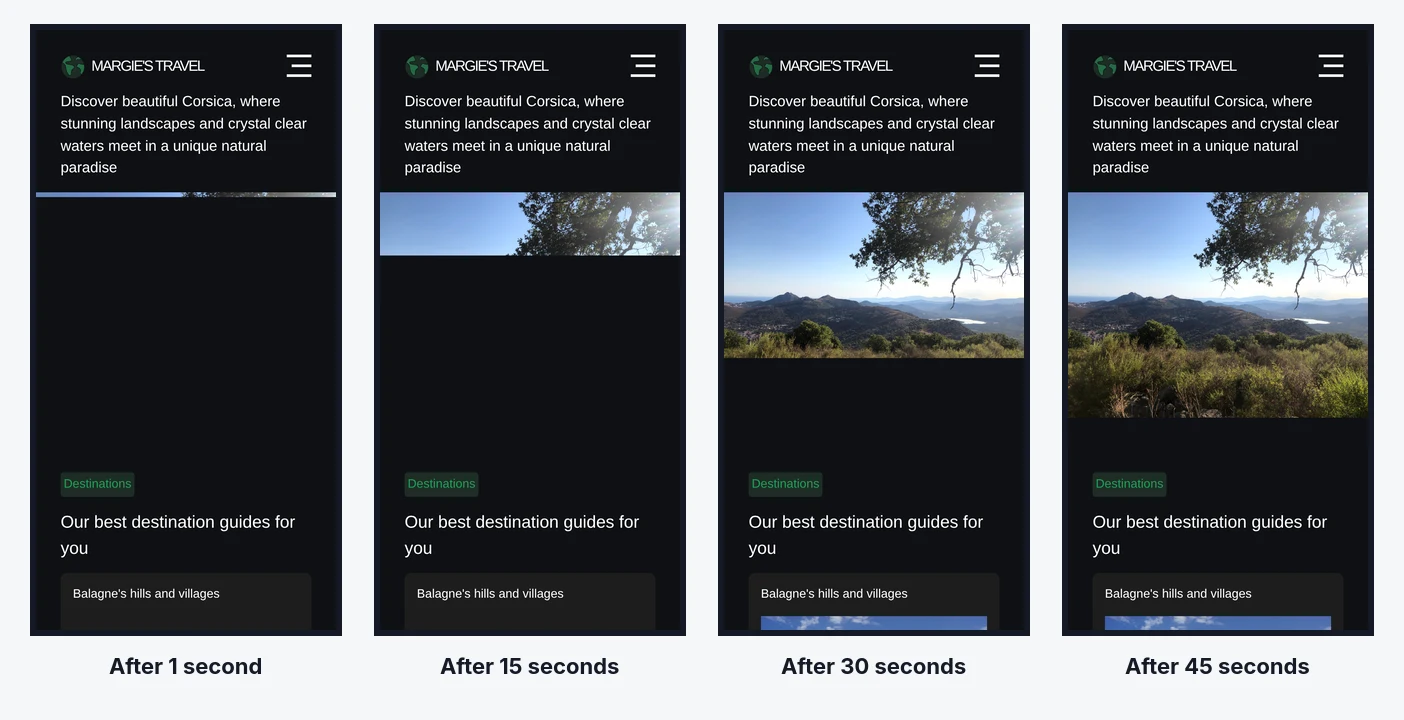
The page in the picture at the top is Margie's Travel, a demo site Microsoft built to be slow on purpose and shares for free. It is kind number 1.
It uses four photos exactly as they came out of the camera, 16 MB together. A megabyte (MB) is a measure of file size: more megabytes, longer download. Saved at the size the page needs, the same photos weigh about 0.4 MB, around 40 times less, and look the same.
On office Wi-Fi the site looks fine, so the person who built it would never notice. Their customer on a train would.
See it yourself in Chrome
Chrome on a computer can list everything a page loads and how long each thing took. It only watches the page, so you cannot break anything.
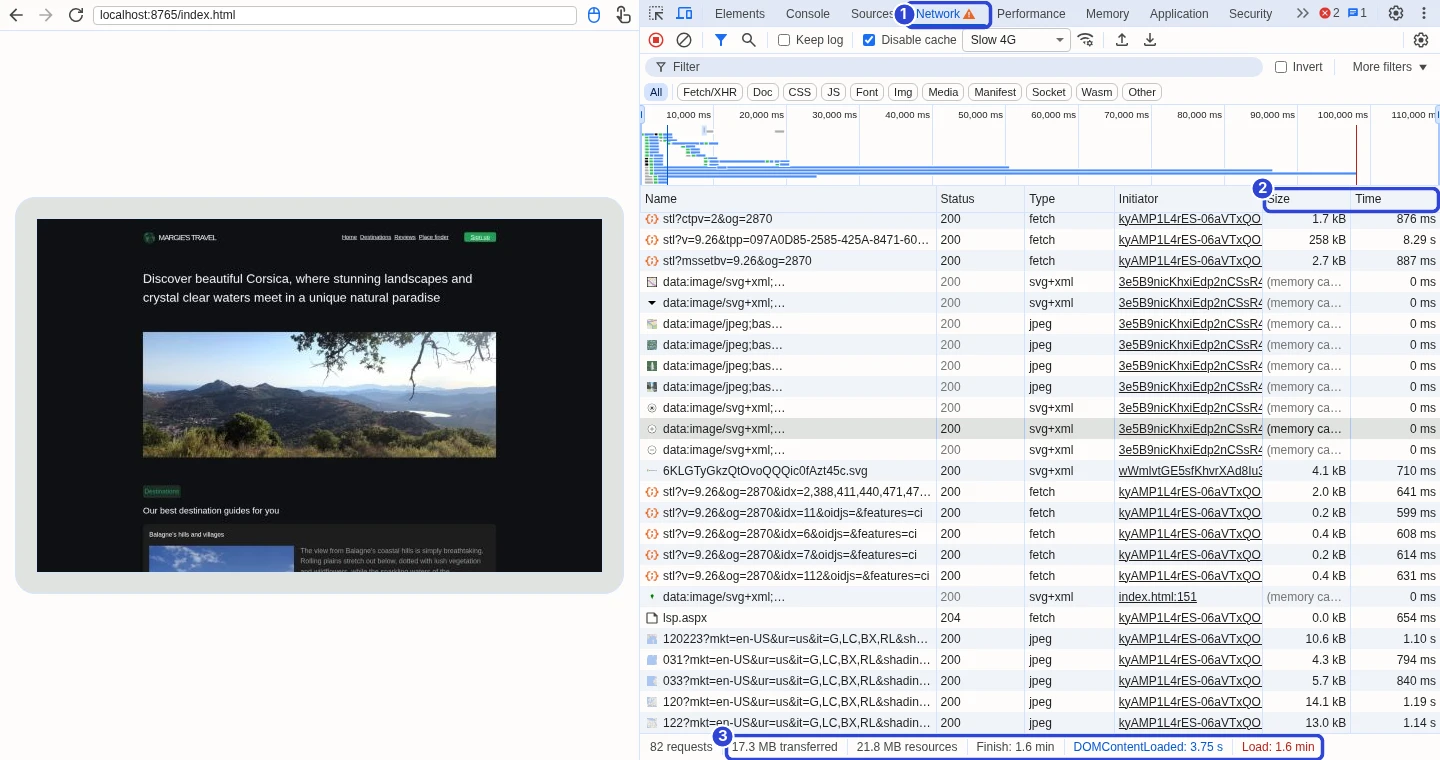
Right-click your page (on a Mac trackpad, click with two fingers) and choose Inspect. Click Network, then reload the page.
Each row is one thing the page asked for. Size is how heavy it was, Time is how long it took. Click the word Time to sort the list, and click it again if the slowest is not on top.
The bottom line shows how much was downloaded and how long the whole page took.
A row that is large and slow means the page is too heavy. Most often it is an image. It can also be a video, a font or a big code file. A row that is small but slow means your server or database took a long time to answer.
Too much? This prompt asks the agent to find the three slowest things on a page and explain them in plain words.
Open the homepage the way a visitor would, record everything it loads, and tell me in plain words the three slowest things and why each one is slow. Do not change anything.Not sure which one? Ask for a full check
This prompt makes the agent list your pages, check each one for every cause of slowness, and come back with a plan before it changes anything.
Review why this app could feel slow. Do not change anything yet.

First list every page and main action in the app, most important first.

Then check each one in that order. Do not judge from the code: open each page in a real browser, click through it and time it. For each one, give me two numbers: how many seconds until the page shows its content, and how many until I can click and scroll. Then tell me in plain words what slows it down:
1. Images and fonts: which are heavier than the page needs.
2. Code: how much JavaScript each page loads, and which libraries or code it loads but does not use.
3. Server: which requests answer slowly, and whether the delay is in the server code or the database. Where it cannot be faster, how the page handles the wait.
4. UI: what freezes, stutters or redraws more than it needs to, for example repeated re-renders, loops or memory leaks.
5. Feedback: which buttons and forms give no sign that something is happening.

Test on a normal connection and a slow one, with a realistic amount of data.

Then give me a plan, worst problem first: what a user notices, why it happens, how you would fix it, what could break, and how you will prove it worked. Wait for my OK before changing anything.You decide which fix goes ahead.
Know which one? Ask for proof
"It should be faster now" is not a result. Ask for these:
"Time it before you change anything and again after. Tell me both numbers."
"Test it the way I did."
"Test it on a slow connection, as a first-time visitor, with a realistic amount of data."
"Check that nothing else got worse."
Put together, a request has two parts: what you felt, and how the agent should prove the fix. Here is one for the slow photo from kind number 1. For your own problem, change the first two sentences.
On my phone, the main photo on the homepage takes about ten seconds to show up. Please fix that.

Before you change anything, time how long the photo takes to appear on a slow mobile connection, as a first-time visitor. After the fix, time it again the same way and tell me both numbers.

Also check that the photos still look sharp, that nothing is missing from the page, and that the other pages did not get slower.Then try it yourself. On your phone, turn Wi-Fi off and open the app in a private window, which makes you a first-time visitor. In Chrome, tap the three dots and choose "New Incognito tab". In Safari, tap the tabs button and choose "Private". If you cannot feel the difference, it is not fixed.
For agents: what "make it faster" usually means
For agentsInstructions for AI agents. People can skip this.
Read this if your human said "make it faster", "it's slow" or "speed it up".
Do not start optimizing. The person felt one specific delay and has not told you which. First find out which one.
Ask one question in plain words: "What were you doing when it felt slow, and what did you see on screen?" Do not ask about metrics, bundles, queries or caching. The person may not know those words.
Then match the answer:
"It takes ages to open", "blank screen", "photos load slowly": the page downloads too much. Check image sizes first, then fonts, videos and scripts, and what loads before the first screen can be drawn.
"I click and nothing happens", "I have to press twice": missing feedback. Check whether the button shows a waiting state before you touch the speed of the request.
"The list shows up late", "search is slow", "it keeps spinning": a slow server or database answer. Time the request for that part of the page.
"It freezes", "it's stuck", "I can't scroll": heavy work is blocking the browser. Look for long calculations that run while the page opens or after a click.
"It gets slower the longer I use it", "reloading fixes it": something builds up while the page is open. Look for memory that is never released, timers or listeners that are added again and again, and lists that keep growing.
"Slow on my phone", "slow for my customers": test with a slow connection and a slow processor, not on the development machine.
If the person cannot say what they saw, do a full check before you change anything. List the pages and main actions, most important first, and test each one in a real browser. For each one, look at five things: images and fonts that are heavier than needed, JavaScript the page loads and does not use, slow answers from the server or the database, UI that freezes, redraws too often or gets slower over time, and buttons that give no feedback. Report the worst problem first, in plain words, and wait for the person's OK.
Prove the fix before you report it:
Measure before you change anything, and again after, the same way both times.
For a page that is slow to open, measure on a slow connection with an empty browser cache.
For a slow list, search or button, use a realistic amount of data. A list of five rows hides a slow query.
Check that nothing got worse: images still look right, nothing is missing, other pages are not slower.
If you could not test something, say so. Do not report it as done.
Report the result the way the person felt the problem: "The main photo now appears in 2 seconds instead of 45." Do not report a score.
What comes next
This is the first guide in a series for people who build with AI and don't write code. Next comes one short guide for each kind of slow: the page that is blank for ages, the click that does nothing, the list that takes forever, the page that freezes, and the app that gets slower the longer you use it. We will add the links here as each one comes out.
Comments
Reviewed before publicationLoading comments…